
Email to Ticket
Get a dedicated support email address. Every email your customers send to it automatically becomes a ticket in FyneDesk — no manual work required.
How it works
FyneDesk gives your organization a dedicated email address in the format support-yourname@fynedesk.io. When a customer sends an email to that address, FyneDesk processes it as a ticket. The subject becomes the ticket title and the body appears as the first message in its conversation.
Your team then handles the ticket in FyneDesk as normal — no need to monitor a shared inbox.
Setting up your support email
An authorized administrator configures this under Admin Settings → Email → Setup. The Email settings page also has separate tabs for Sending, Forwarding, Branding, Templates, and Survey.
- 1Type a short identifier for your organization in the email name field. For example,
acmegives yousupport-acme@fynedesk.io. Use lowercase letters, numbers, and hyphens only (3-30 characters). - 2As you type, FyneDesk checks in real time whether the name is available. A green checkmark means it's free.
- 3Click Save to reserve the address for your organization.
- 4Once saved, switch the email channel on. Test it by sending a message from another inbox to the exact address shown on the Setup tab.
support- prefix automatically, so entering acme gives you support-acme@fynedesk.io.What a ticket from email looks like
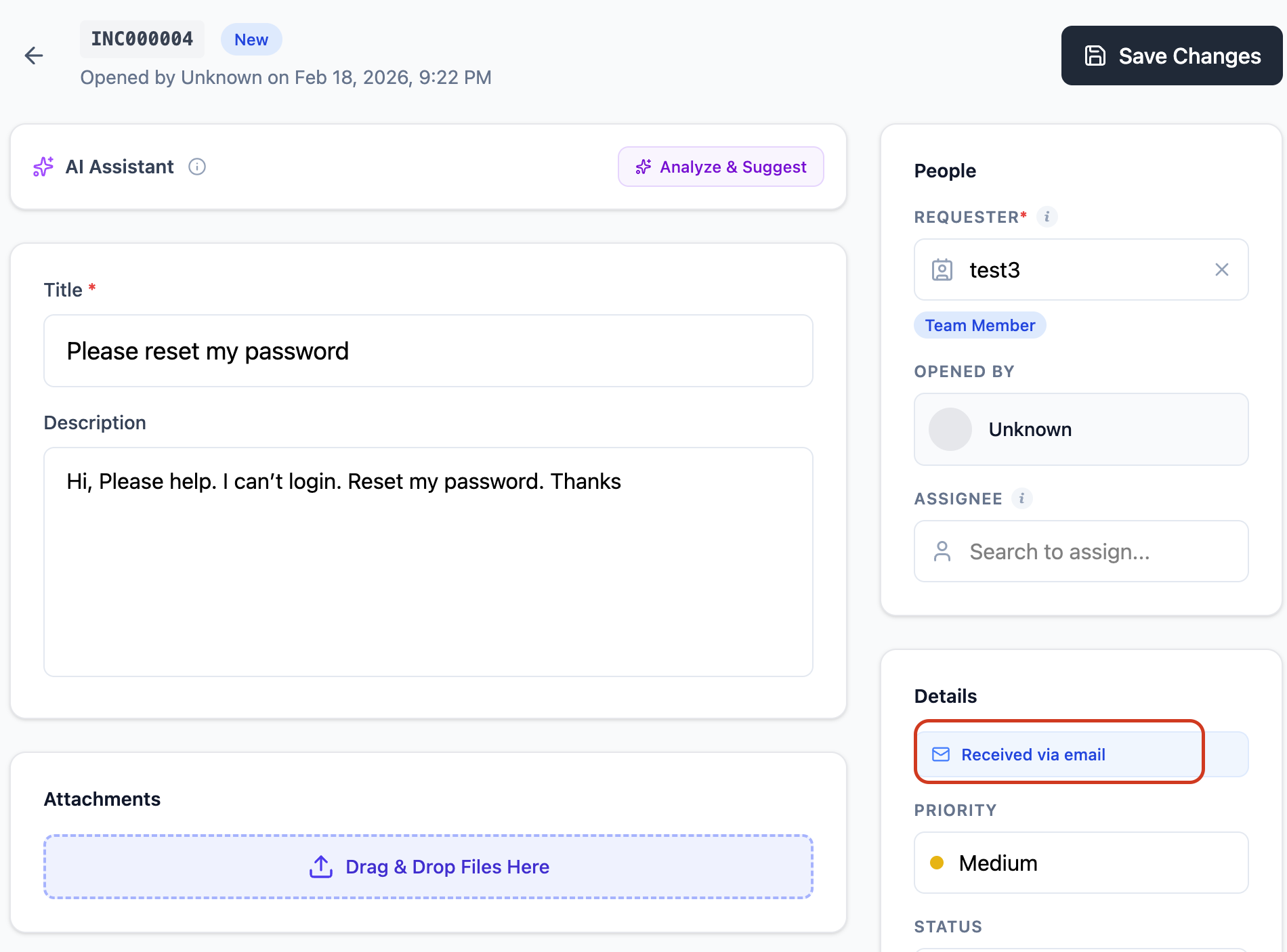
When FyneDesk processes an inbound email, it creates a ticket with:
- The email subject as the ticket title
- The email body as the first message in the ticket conversation
- The sender's name and email captured as the requester
- The ticket source marked as "Email" so you can filter by it
Sharing your support email with customers
Once enabled, share the address wherever your customers might need to reach you:
- Your website's contact or support page
- Email signatures for your team
- Invoices, receipts, or any customer-facing documents
- Auto-reply messages on your existing email accounts
Enabling and disabling
You can turn the email channel on or off from Admin Settings → Email → Setup without losing your address. When it is off, emails sent to that address will not create tickets. Turn it back on whenever you are ready.
Individual notification preferences
Each team member controls their own notification preferences separately in My Settings → Notifications. Those preferences do not enable or disable the support email channel for the whole workspace.
See My Settings and Profile for details.
Frequently asked questions
How quickly do emails become tickets?
A test message should usually appear in Tickets within about a minute, though delivery can vary with the sender's provider and forwarding setup. If it does not arrive, check the channel switch, the recipient address, forwarding rules, and Spam Center.
What happens to email threads and replies?
New, unrelated emails create new tickets. When a customer replies to a ticket email and FyneDesk can match the thread or ticket reference, the reply is added to the existing ticket instead of creating a duplicate ticket.
Agents can keep the conversation going from the ticket, so customer replies, agent replies, and the ticket history stay together.
Can I have more than one support email address?
Each organization has one primary FyneDesk support address. On Pro and above, you can register additional custom sending addresses under Email → Sending. For multiple inbound addresses, review the Forwarding tab and its address rules rather than assuming every alias creates a separate mailbox.
What if I already have a support@mycompany.com address?
Yes, on Pro and above. See Using your own email address below for the sending-domain and forwarding steps.
Are attachments in emails supported?
Yes. FyneDesk preserves supported email attachments when the message becomes a ticket or reply, subject to file size, file type, and storage limits. If a sender's email provider blocks or strips an attachment before it reaches FyneDesk, it may not appear on the ticket.
Using your own email address (Custom Email)
On Pro and above, you can register a support address on your own domain (for example, support@yourcompany.com). Once domain sending is verified and your mailbox forwards to your active FyneDesk address, incoming mail becomes tickets and eligible replies can use your verified address.
How it works
There are two parts: outbound (replies sent from FyneDesk appear to come from your domain) and inbound (emails arriving at your address create tickets in FyneDesk). Both need to be configured for the full experience.
Step 1: Register your custom email in FyneDesk
- 1Go to Admin Settings → Email → Sending in FyneDesk. Set up and turn on the primary Email to Ticket address first.
- 2Open the custom sending-address section.
- 3Enter the email address you want to use (e.g.
support@yourcompany.com) and click Add. - 4The address appears as pending while FyneDesk prepares domain verification. Follow the status and instructions shown on the page; setup can require a manual review.
Step 2: Add DNS records to your domain
FyneDesk supplies the DNS records needed to verify your domain for sending. Add only the records shown for your address; do not reuse records from another domain or an old setup email.
- 1Log in to your domain's DNS management panel (e.g. Cloudflare, GoDaddy, Namecheap, or wherever you manage your domain).
- 2Add each requested DNS record exactly as shown in your FyneDesk setup instructions. These commonly include TXT and CNAME records.
- 3Wait for DNS propagation. This usually takes a few minutes but can take up to 48 hours.
Step 3: Choose your FyneDesk support email name
While you wait for DNS verification, set up the inbound side in Admin Settings → Email → Setup:
- 1Choose a name for your FyneDesk support email (e.g. type
acmeto getsupport-acme@fynedesk.io). - 2Click Save, then turn the email channel on.
Step 4: Set up email forwarding
The final step is to forward incoming emails from your custom address to your FyneDesk support email. This is how inbound emails reach FyneDesk and become tickets.
- 1Go to your email provider's settings (wherever your custom email mailbox is hosted).
- 2Set up a forwarding rule to send a copy of all incoming emails to the FyneDesk address you chose in Step 3 (e.g.
support-acme@fynedesk.io).
Send a real test message through the custom address and verify that it appears in Tickets with the correct requester. Then send a reply and check its From address. Domain verification and forwarding must both be active for the full experience.
Step 5: If activation stalls
If the address remains pending after the required records verify, follow the status shown under Email → Sending or contact support@fynedesk.io with the address and workspace name. Do not share DNS-provider credentials.