
Asset Permissions
Decide who on your team can do what in the Asset module — from running the Assign workflow to placing a compliance hold. This guide explains how permissions are organized, how to set them up, and how to switch on enforcement when you are ready.
What asset permissions are
Selected actions in the Asset module have a capability – a permission for a specific action, such as running the Assign workflow or applying a compliance hold. Asset permissions let you configure those actions for your team; they do not replace the normal access needed to open and manage assets.
Permissions start out advisory. Until you turn on enforcement (covered further down this page), changing a capability setting does not block anyone – it simply records the access you intend people to have. This lets you set everything up carefully and review it before it affects anyone's day-to-day work.
How permission groups work
The Asset Permissions screen is organized into permission groups. Each group is a set of people, and each group has its own capability settings.
- Administrators – always have full access to everything in the Asset module. This group is shown locked and cannot be changed.
- Role groups – such as All Agents, Support Manager, or Restricted Agent. A role grant applies to everyone with that role.
- One group per team – if your organization uses teams, each team appears as its own group. A team grant adds access for its members.
Setting up permissions
To review or change a group's capabilities:
- 1Go to Admin Settings > Assets > Permissions.
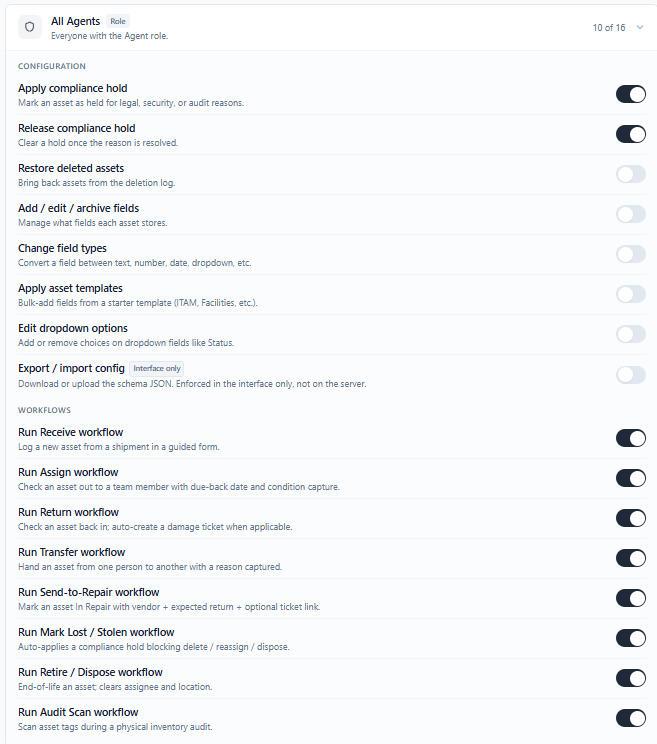
- 2Click a permission group to expand it. You will see the full list of capabilities, each with an on/off toggle.
- 3Switch any capability on or off. Changes save as you make them – there is no separate Save button.
- 4Collapse the group when you are done, and move on to the next one.
Role and team grants are additive. An agent can use a capability if their role or one of their teams allows it. Turning a capability off for a team does not revoke an allow from the person's role or another team. Use a per-user Deny if you need to block one person despite those grants.
Per-user exceptions
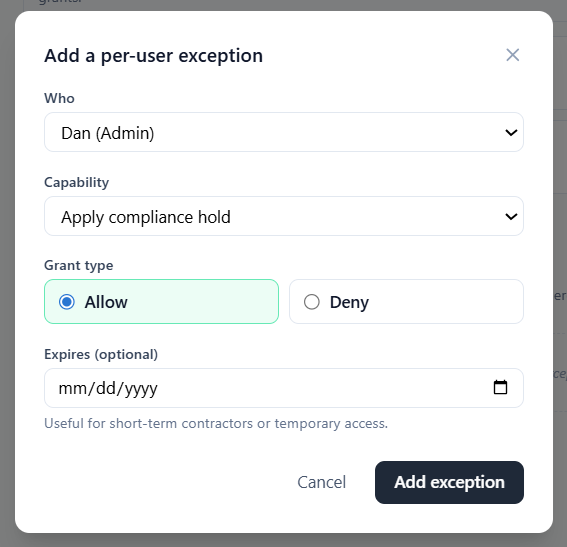
Below the permission groups is a Per-user exceptions section. Use it when one specific person needs different access from their group – for example, a contractor who needs temporary access, or a single team member who should not have a capability the rest of their team has.
- 1In the Per-user exceptions section, choose the person.
- 2Pick the capability you want to set for them.
- 3Choose Allow or Deny.
- 4Optionally set an expiry date. This is handy for temporary access – after that date, the exception stops applying on its own.
A per-user Deny blocks the capability even if the person's role or team allows it. A per-user Allow grants access when their role and teams do not. An active per-user Deny still wins if both Allow and Deny grants exist.
Turning on enforcement
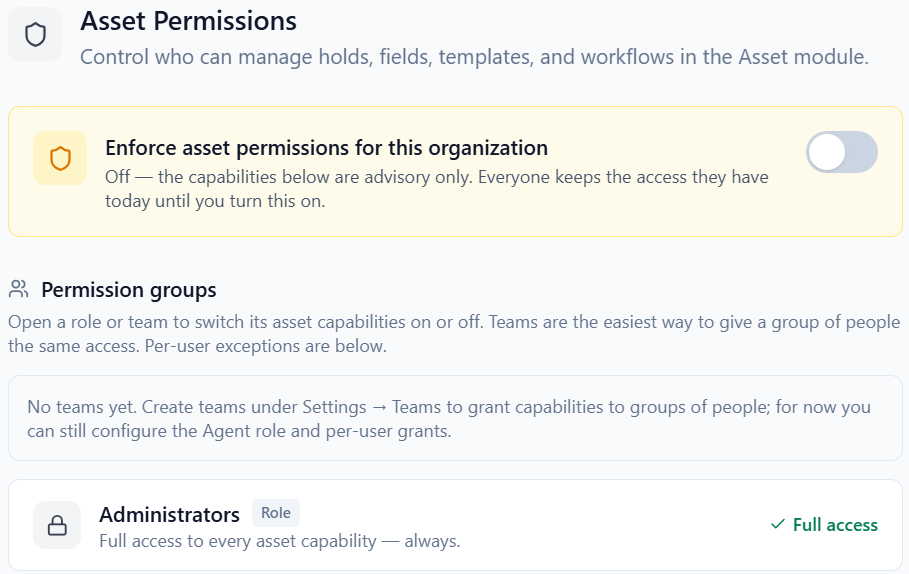
At the top of the Asset Permissions screen is a master switch: "Enforce asset permissions for this workspace." It controls whether your capability settings actually take effect. Changing it requires Business.
- Off (the default) – your capability settings are advisory. Everyone keeps the access they have today and nothing is blocked. This is the safe state for setting things up.
- On – your capability settings are enforced. Anyone without a capability is blocked from that action. Administrators always keep full access, no matter what.
An admin can flip this switch on or off at any time, and the change takes effect immediately. Because of that, it is worth reviewing every permission group before you turn enforcement on, so nobody is unexpectedly blocked from something they need.


Asset capabilities reference
These are the capabilities you will find on the Asset Permissions screen. Each one can be switched on or off per group, or overridden for an individual person.
| Capability | What it controls |
|---|---|
| Apply compliance hold | Place an asset on a legal, security, or audit hold. |
| Release compliance hold | Take an asset off a hold once the reason is resolved. |
| Restore deleted assets | Bring a deleted asset back. |
| Add / edit / archive fields | Manage the fields that assets record. |
| Change field types | Change what kind of value a field stores. |
| Apply asset templates | Add a ready-made set of fields from a template. |
| Edit dropdown options | Change the choices available in a dropdown field, such as Status. |
| Export / import config | Download or upload your field setup. This one is an interface convenience. |
| Run a workflow | Run one of the guided asset workflows. See the note below. |
The permissions list includes workflow capabilities for Assign, Return, Transfer, Send-to-Repair, Mark Lost/Stolen, Retire/Dispose, and Audit Scan. These actions are available now, although Audit Scan runs from its own page rather than the single-asset workflow menu. Reactivate uses the Retire/Dispose capability. See Asset Workflows for the current actions and state-dependent options.
The list also contains a Receive capability, but there is no separate Receive workflow in the current app. To record a newly received item, use Add Asset; granting Receive alone does not add a Receive button.
Frequently asked questions
Do I need to turn on enforcement?
No. Many teams leave enforcement off while they set things up, and some leave it off long-term. With it off, the Asset module behaves exactly as it did before – your capability settings are simply recorded for later. Turn enforcement on when you want those settings to actually block actions.
What happens to Administrators when enforcement is on?
Administrators always keep full access to the Asset module, whether enforcement is on or off. Their access cannot be reduced, which is why the Administrators group is shown locked.
Someone cannot do something they used to be able to do
If enforcement is on, check the person's role and all of their teams for an Allow grant, then look for an active per-user Deny. Also confirm they have the normal asset access required for the action. A capability grant does not by itself make an otherwise inaccessible asset available.
A per-user exception is not working
Check that it is set to the right person and capability, that Allow or Deny is what you intended, and that any expiry date has not already passed. Also remember that Administrators always have full access, so an exception will not change anything for an admin.