
The short answer
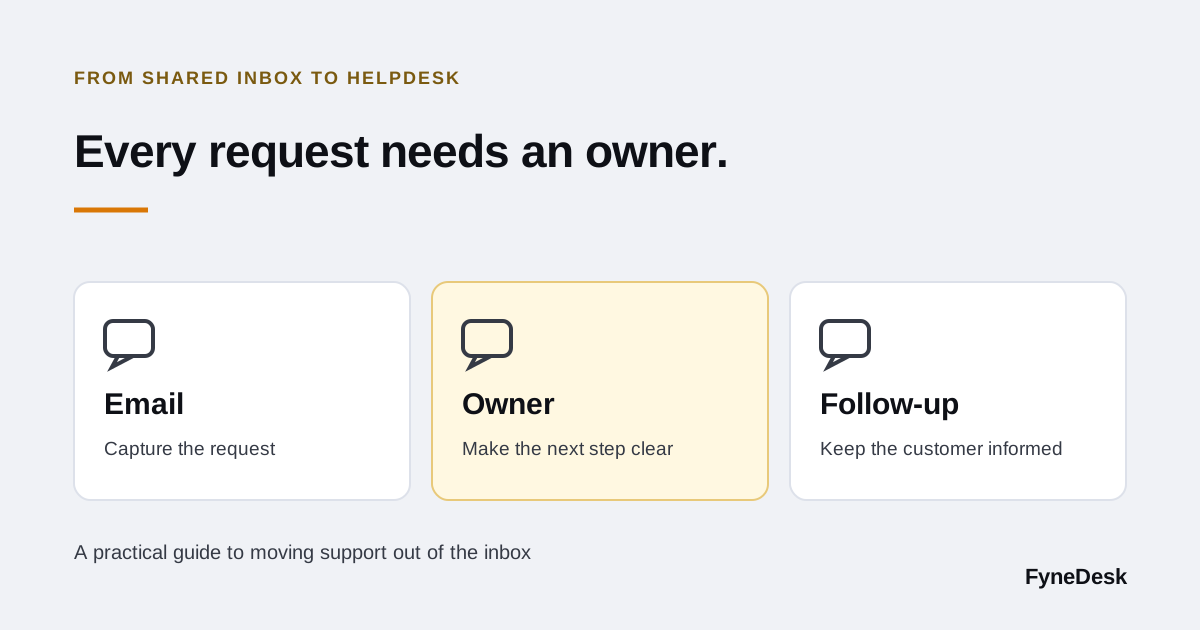
Start with one support address and one queue. Give each open request an owner and a next step, test incoming mail and replies, then agree on one place to answer customers. Keep the old mailbox available for reference until you have checked the cutover.
Two teammates reply to the same customer. Another request is marked as read, but nobody follows up. A third waits for an answer from engineering, and the support team loses track of it.
These are reasons to review how you manage support email. Moving from a shared inbox to a helpdesk gives each request a visible owner and state, but the tool only helps if the team agrees how to use it.
This guide covers moving an email-based support process into tickets. If you are already changing between ticketing systems, use the separate helpdesk migration checklist for import mapping and historical data checks.
When a shared inbox is still enough
A shared mailbox can work when one person handles support, requests rarely need a handoff, and the team can easily see what remains unanswered. You do not need to replace a working process just because a helpdesk has more features.
Consider changing when these problems recur:
- Unclear ownership: everyone can see a request, but nobody knows who is responsible.
- Duplicate replies: teammates answer independently or give conflicting instructions.
- Invisible waiting: a customer reply or an internal dependency disappears into the inbox.
- Missing context: someone taking over must reconstruct what was promised.
- Manual reporting: you count messages to understand how much work is still open.
Some shared-inbox products already support assignment, notes, and reports. Evaluate those capabilities before switching. The useful question is whether your team can reliably answer: Who owns this request, what is blocking it, and what happens next?
Shared inbox vs. helpdesk: what changes
| Part of the work | A basic shared mailbox | A helpdesk process |
|---|---|---|
| Ownership | Inferred from a folder, flag, or team message | A named person owns the request |
| Progress | Read/unread describes the message | A ticket status describes the work |
| Handoffs | Context may live in another email or chat | Notes and history stay with the request |
| Follow-up | Someone remembers to check again | The owner records the next step and reviews waiting work |
| Reporting | Often assembled from mailbox activity | Ticket records provide a basis for tracking the queue |
A helpdesk does not automatically resolve a handoff. Someone still needs to own the customer update while another team works on the underlying issue.
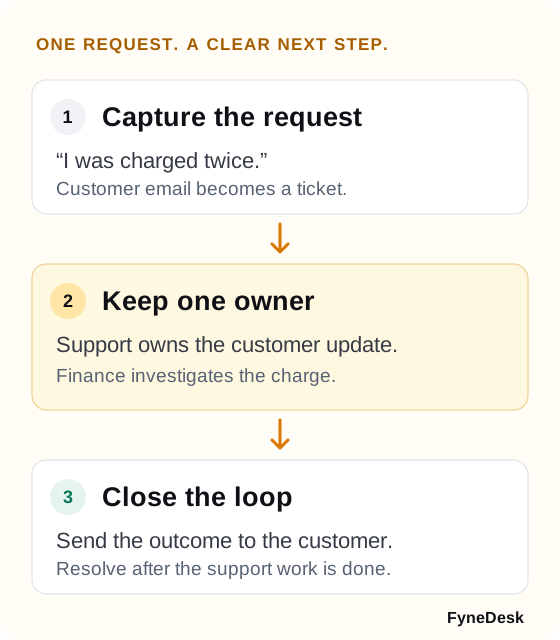
For example: a customer emails about a duplicate charge. Support owns the ticket, asks finance to investigate, and tells the customer when to expect an update. The request remains visible while finance works. When finance responds, support sends the customer the outcome and resolves the ticket. An internal handoff is not the same as a completed customer request.
Define the first queue before connecting email
Keep the initial workflow small enough that a teammate can explain it in a minute. Write down:
- Intake: which address will receive the first support requests?
- Triage: who checks new, unassigned work and when?
- Ownership: who is responsible for the next customer update?
- Waiting: how will you distinguish waiting for a customer from waiting for your team?
- Resolution: what needs to be true before you mark the request complete?
Use the statuses your tool provides; do not build a complex workflow before you have handled real tickets. Agree on a regular review of unassigned requests and work waiting on someone else. Add routing rules or automation later if the same manual step keeps repeating.
Try email-to-ticket in FyneDesk
You can test the basic process with a small team before changing your public support address. FyneDesk Free supports up to three agents and includes a dedicated FyneDesk email-to-ticket address. New accounts include a Business trial, so review the current plan boundaries before treating every visible trial feature as part of Free.
Set up a dedicated support address
An authorized administrator opens Admin Settings → Email → Setup, chooses an available organization identifier, saves it, and switches the email channel on. An identifier such as acme produces an address in the form support-acme@fynedesk.io. Use the exact address shown in your workspace.
Send a new message from a separate test inbox. Check that the subject becomes the ticket title, the body appears in the conversation, and the sender is recorded as the requester. Assign the ticket to a teammate and agree on the next step.
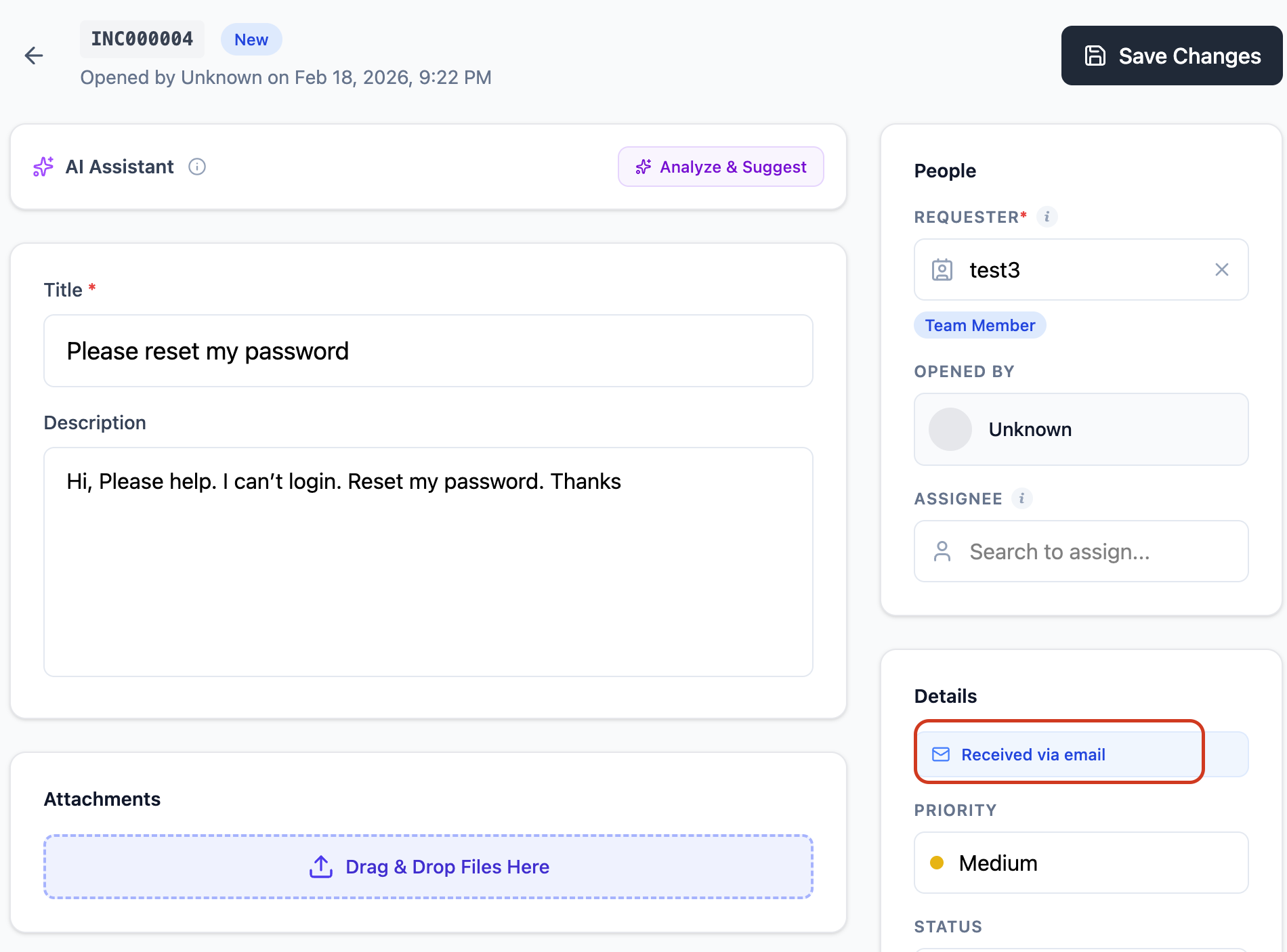
Reply from the ticket, then reply again from the customer’s test inbox. Confirm the customer’s response returns to the same ticket. See the Email to Ticket guide for setup and troubleshooting.
Keep your own email identity when the plan supports it
If customers must continue using an address such as support@yourcompany.com, plan for both directions of email:
- Incoming: the mailbox forwards new requests to the active FyneDesk address according to the supported forwarding configuration.
- Outgoing: FyneDesk sends eligible replies using your verified custom address.
FyneDesk’s custom sending address requires Pro or above. Follow Email → Sending and the domain-verification instructions for your workspace, then review Forwarding. Forwarding alone does not verify your sending domain. Do not change domain-wide mail delivery records just to test one support address.
For a Free-only evaluation, use the dedicated FyneDesk address first. If you evaluate custom email during the Business trial, account for its paid-plan requirement after the trial ends.
Review what customers receive
Workspace admins can customize the subject and body of customer-facing messages under Settings → Email → Messages, in every supported language, and reset them to default on every plan. Start with the confirmation and resolution messages so they match the workflow you actually run.
Email-message editing is separate from branding: removing Powered by FyneDesk, adding a logo, and using a custom email header require Pro or above, with trial access where applicable. Accent color and footer text are available on every plan.
Run these checks before cutover
Use test messages before involving customers. The expected results below are acceptance checks for your setup, not a promise that every mailbox provider or import method behaves identically.
| Test | What to verify |
|---|---|
| New request from an outside inbox | One ticket, correct requester, readable subject and body |
| Agent reply and customer follow-up | Customer receives the reply; their response joins the existing ticket |
| Two unrelated messages with the same subject | They remain separate requests rather than being merged accidentally |
| Supported attachment | It can be opened by the intended recipient and appears in the ticket |
| Teammate handoff | The new owner can see the context and knows the next step |
| Request waiting on another team | Support still knows who must update the customer |
| Confirmation and resolution messages | The wording, language, sender, and links are appropriate |
If a check fails, fix it before expanding the rollout. For missing mail, inspect the channel switch, recipient address, forwarding configuration, and Spam Center. For duplicate tickets, check whether multiple forwarding paths delivered the same message.
Move open work, then choose a cutover point
Forwarding new messages does not import your old mailbox. Decide separately what history needs to move and what can remain available for reference. A small backlog may be easier to review request by request; larger imports need explicit checks for supported formats, conversation history, attachments, and requester mapping. See importing existing data.
Before switching the team over:
- List every unresolved request and give it an owner.
- Record the latest customer promise and the next action.
- Choose when agents should start replying from the helpdesk.
- Assign someone to watch the old mailbox for missed requests during the transition.
- Confirm one intended forwarding path and remove duplicate delivery paths through your normal mailbox administration process.
Once cutover starts, agents should work customer conversations from the helpdesk. Keeping two places actively sending replies recreates the ownership problem. Preserve the old mailbox for reference according to your retention requirements; do not delete history just because new mail is flowing into tickets.
Review the first week of real requests
Check the queue together: which tickets have no owner, which are waiting, and which customers still need an update? Review a few resolved requests to see whether someone taking over could understand the outcome.
Use those examples to improve the process. Add a saved answer for a repeated question, write a help article for a common task, or simplify a status that confuses the team. Start automation only after you can describe the rule and test its result.
Ready to try the workflow? Start a free FyneDesk workspace, then follow the new-admin setup checklist. The first milestone is simple: a real request has one owner, a visible next step, and a customer who knows what happens next.
Frequently asked questions
What is the difference between a shared inbox and a helpdesk?
A shared inbox gives several people access to an email address. A helpdesk turns requests into records with ownership, status, and conversation history. Some shared-inbox tools also offer assignment and reporting, so compare the workflow you need rather than relying on the product label.
Can customers keep emailing support instead of using a portal?
Yes. Email-to-ticket lets customers send email while your team works in tickets. In FyneDesk, Free includes a dedicated FyneDesk support address. A verified custom sending address on your own domain requires Pro or above; configure and test both incoming forwarding and outgoing sending.
Does forwarding email import the entire old mailbox?
No. Forwarding new messages and importing historical conversations are different tasks. Keep your old mailbox available and check supported import formats, message history, attachments, and requester mapping before transferring older records.
Can a small team start with FyneDesk Free?
Free supports up to three agents and email-to-ticket through a dedicated FyneDesk address. New accounts include a Business trial, so check the ongoing Free limits before depending on a trial feature. Custom email sending requires Pro or above.
Can we customize customer confirmation emails on Free?
Yes. Workspace admins can edit customer-email subjects and bodies in Settings → Email → Messages, in every supported language, and reset them to default on every plan. Removing Powered by FyneDesk and adding a logo or custom email header remain Pro-and-above features, with trial access where applicable.
Sources and review date
Reviewed on October 18, 2026. Product offers and plan limits can change; confirm the details with the provider before choosing a plan.
- FyneDesk: Email to Ticket and custom email setup
- FyneDesk: Current pricing and feature availability
- FyneDesk: Importing existing data
Published by FyneDesk. We make one of the products discussed. Comparisons use the linked documentation and do not imply hands-on testing or vendor endorsement.
Put the guide into practice
Give your next request a place to go.
Explore FyneDesk with your team, then choose a plan around the way you work.